Unlock your Galaxy device if forgot the security Pin, Pattern or Password
इस लेख को हिंदी में देखने के लिए कृपया यहाँ क्लिक करें
Galaxy devices have a feature that allows you to unlock the screen by using a past screen lock method when you have forgotten or lost your current means (PIN, password, or pattern) for unlocking your device.
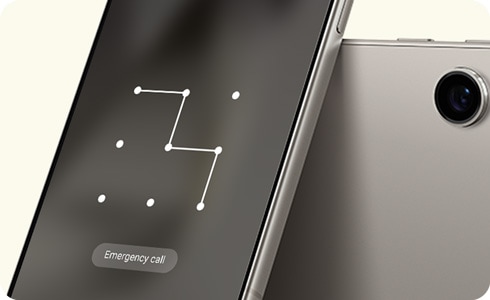
Notes:
- The unlocking function using the previous screen lock method (PIN, password, or pattern) is supported on Galaxy models equipped with One UI 6.1 or later.
- This function can be used once per screen lock type after changing your PIN, password, or pattern.
- After changing your screen lock PIN, password, or pattern, the previous screen lock data is stored for 72 hours and then deleted.
- Screen images, feature name may vary depending on your model and software version.
Screen Lock Recovery
The “Forgot PIN/Password/Pattern” option on the lock screen is activated after 5 or more failed attempts to unlock the device. After using the "Forgot PIN/Password/Pattern" feature, if the previous lock method is entered incorrectly 3 times, no further attempts will be allowed.
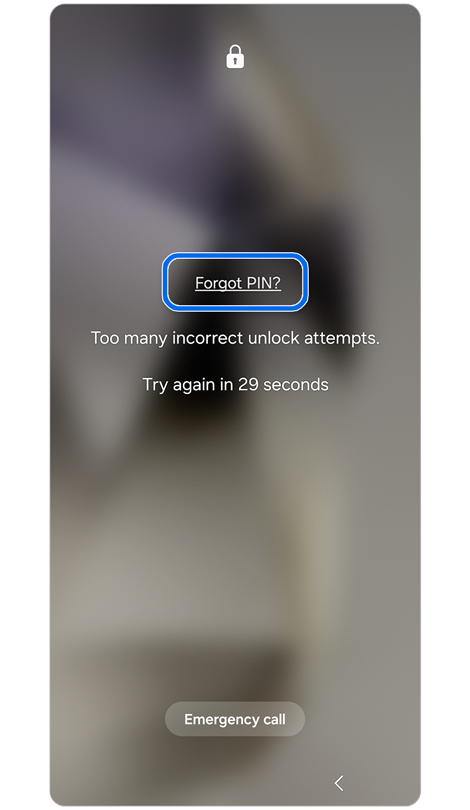
Step 1. Tap Forgot PIN? when the link appears.
* The link will refer to your screen lock type.


Step 2. Enter a previous PIN > Tap OK.
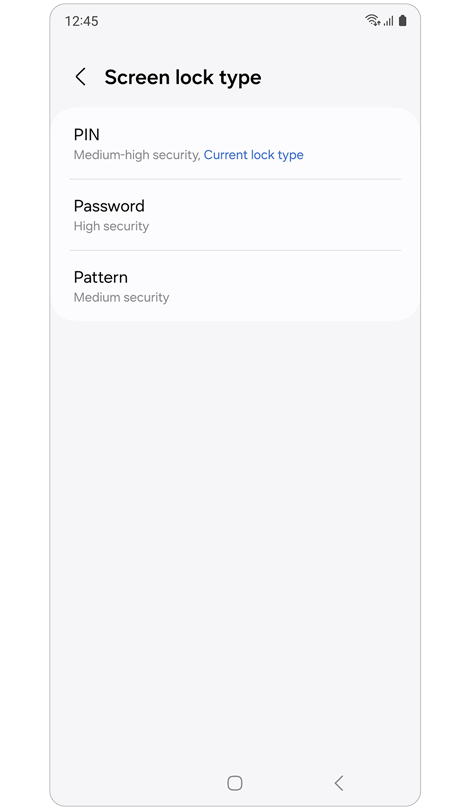
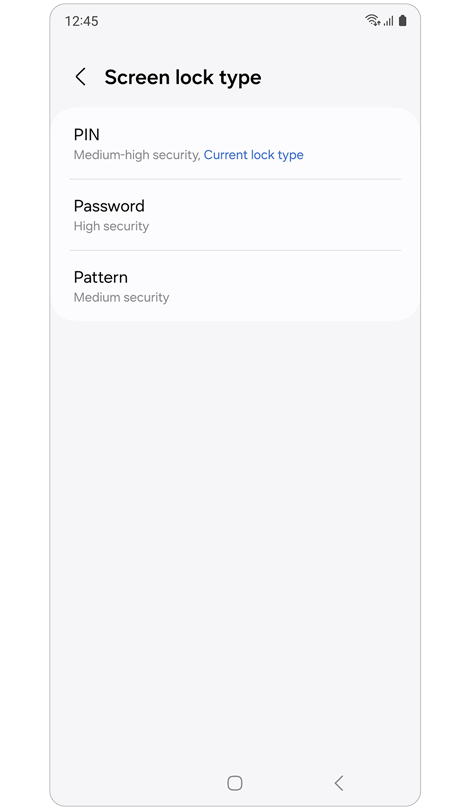
Step 3. To change your current screen lock, select a screen lock type.
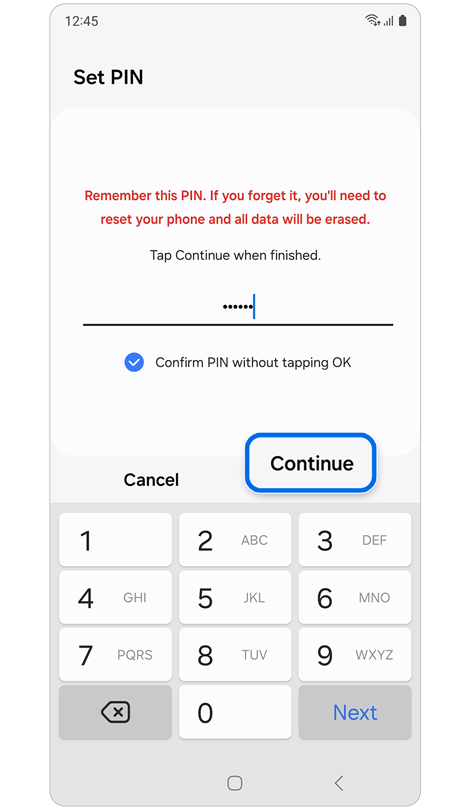
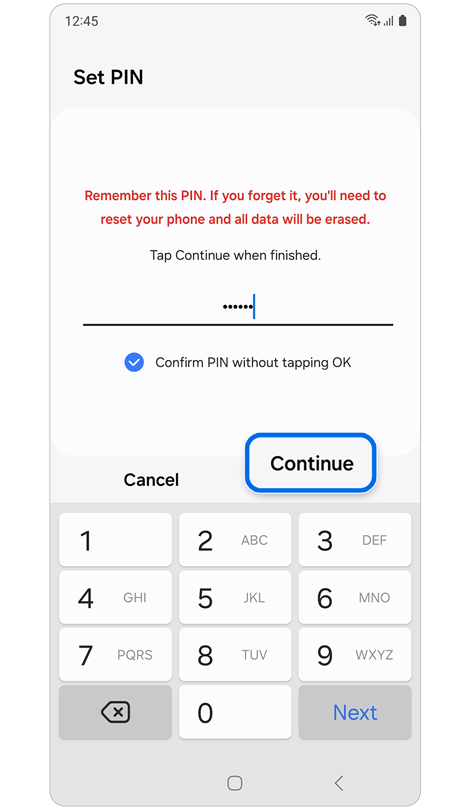
Step 4. Enter your new PIN, password, or pattern > Tap Continue.


Step 5. Re-enter your new PIN, password, or pattern > Tap OK.
Unlock device doing factory reset through SmartThings Find
If you've forgotten your password or haven't changed it recently, you can unlock your phone by performing a factory reset through the 'Erase data' option in SmartThings Find. However, please note that this process will permanently delete all your data, which cannot be recovered.
A Samsung account login is required for this action.


*Please note that If the device is offline then the data will be erased when the device next goes online.

* If you need assistance with performing a factory reset or suspect a device issue, please visit an authorized service center for support.
Smart Lock or Extend Unlock
You can set the device to unlock itself and remain unlocked when trusted locations or devices are detected.
For example, if you have set your home as a trusted location, when you get home your device will detect the location and automatically unlock itself.
Notes:
- This feature will be available to use after you set a screen lock method.
- If you do not use your device for four hours or when you turn on the device, you must unlock the screen using the pattern, PIN, or password you set.

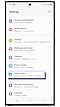
1. Navigate to Settings
and tap on it.

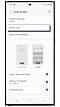
2. Tap on
Lock Screen.

3. Tap on
Smart Lock or Extend Unlock.
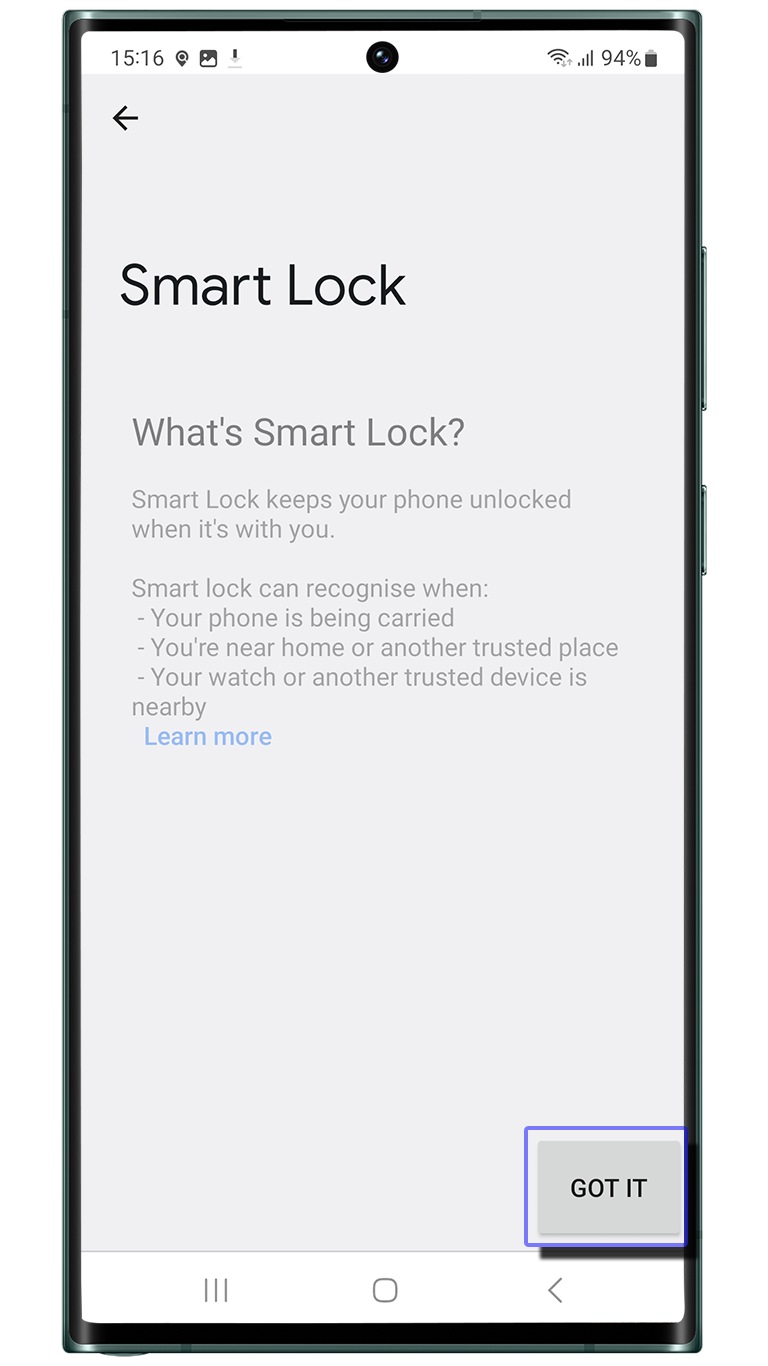
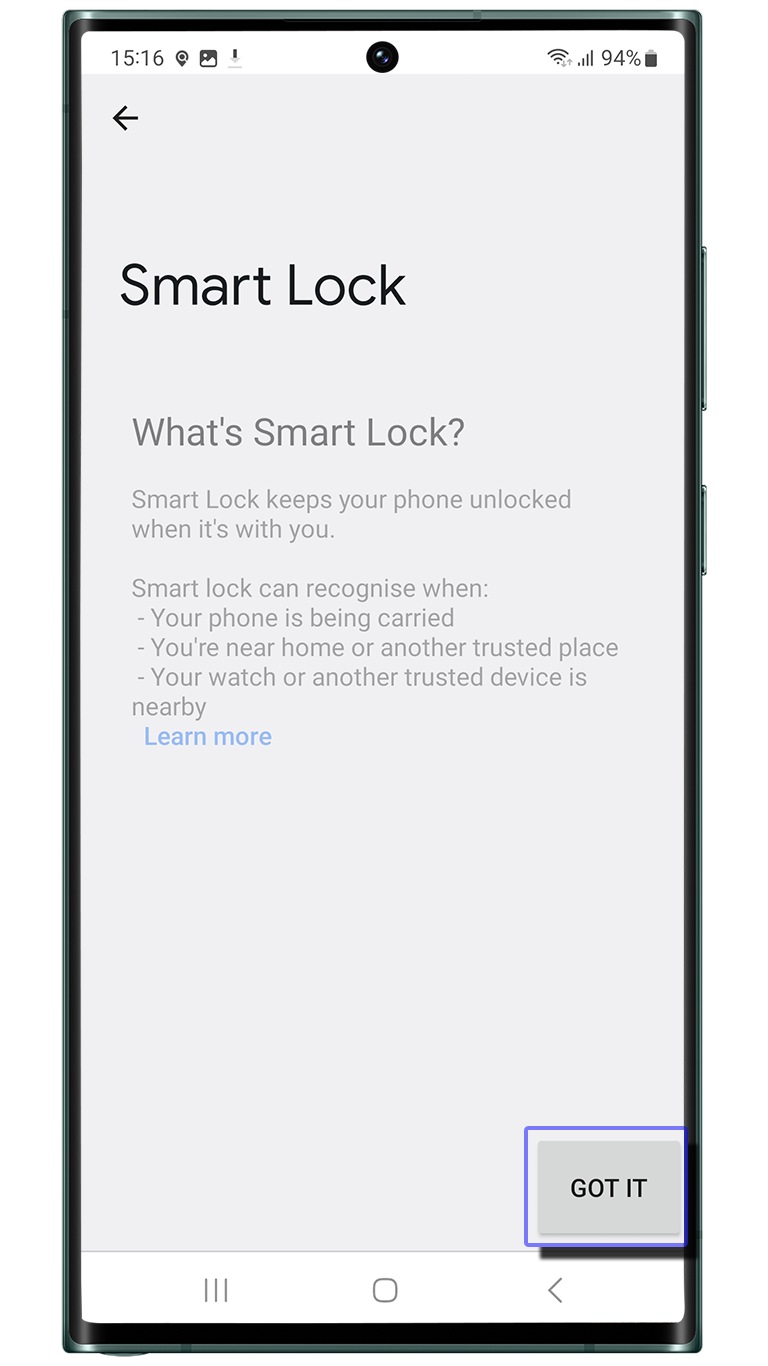
4. Enter the lock and
Tap on Got it.


5. Select the
Smart Lock or Extend Unlock features .
- On-body detection: Once you have unlocked your device, it stays unlocked while it's in motion, suh as when you are walking with it. This device will stay unlocked for upto four hours or until you put it down.
- Trusted Places: Once you have unlocked your device, it stays unlocked as long as you are at or close to a trusted place. This device will stay unlocked for upto four hours or until you leave one of your trusted places.
Note: For accuracy, this uses your precise location.
- Trusted devices: Once your have unlocked this device, it stays unlocked when it's connected to a trusted device. This device will stays unlocked for up to four hours or until it disconnects from all trusted devices.
Other topic you may be interested in:
Thank you for your feedback!
Please answer all questions.
Contact Info
Digital Service Center
![DSC icon image]()
![DSC icon image]()



Scan to access
WhatsApp
![WhatsApp image icon]()
![WhatsApp image icon]()


Languages offered : English/ हिन्दी/ Indian Regional Languages
Available 24 Hours / 7 days
WhatsApp@ 1-800-5-726-7864

Scan to access
Chat with us
![chat with us icon image contact info]()
![chat with us icon image contact info]()


Sign Language
![Sign language image]()
![Sign language image]()


Available: 11 AM to 4 PM (Monday - Friday)


Face-to-Face Support
![Image of location icon]()
![Image of location icon]()


Remote Service
![Image of RM icon]()
![Image of RM icon]()


Phone Support (India)
![image of phone dialer]()
![image of phone dialer]()


Phone Support (Bangladesh, Sri Lanka, Nepal)
![Image of caller icon]()
![Image of caller icon]()
RC01_Static Content : This text is only displayed on the editor page