Share content with your contacts on your Galaxy phone
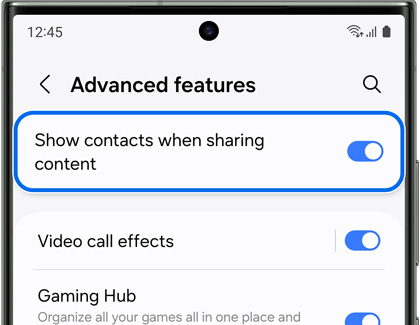
Turn on Show contacts when sharing content
When using your phone to send files or images, you can select from your phone's contacts. This will make it easy to quickly send content. Before sending something, make sure your contacts appear by enabling the setting.
- Navigate to and open Settings.
- Tap Advanced features.
- Swipe to and tap the switch next to Show contacts when sharing content.

Share with your contacts

Want to share a photo with your bestie?
- Navigate to the file you want to share.
- You can use almost any app, but for this example, open Gallery.
- Touch and hold the image you want to share.
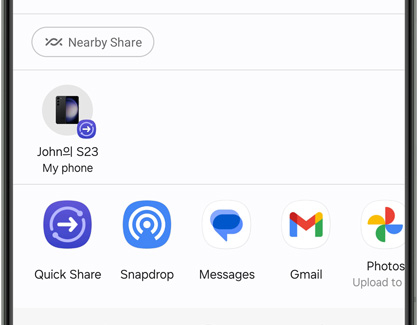
- Tap the Share icon; contacts you have shared content with in the past will appear as icons in the sharing panel.
- Select your desired contact from the available options to share your image.
Contact Samsung Support


