Use SmartThings Home Care in the SmartThings app
Introduction to Home Care
Use Home Care notifications
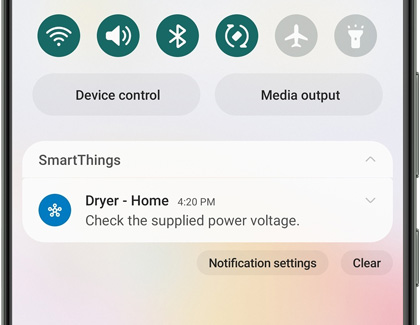
If an appliance is malfunctioning or needs attention, you’ll receive a Home Care notification about it. You can view troubleshooting steps and create a new service ticket (if necessary) directly from the notification.

- Swipe down from the top of the screen to open the Notification panel, and then tap the SmartThings appliance error notification to open the SmartThings app.
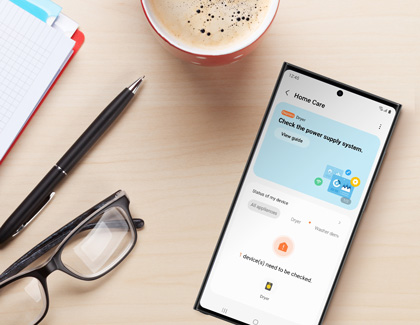
- The error message will be displayed; review the information and then tap the message. For instance, the message may say: “1 device(s) need to be checked."
- The appliance’s unique error code and troubleshooting steps will appear. Follow the troubleshooting instructions to resolve the issue.
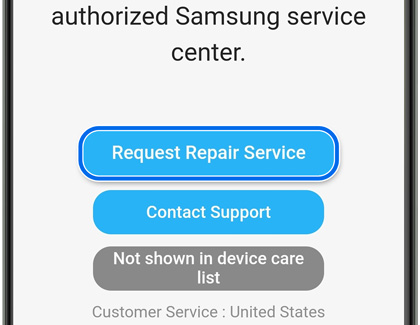
- If the instructions do not resolve the issue, you can tap the following:
- Request Repair Service: Follow the prompts to enter your personal information and create a service ticket for your appliance. You will then receive a reference number and other details regarding your ticket. Please see the last section in this article for more information about tracking a ticket’s progress.
- Contact Support: Contact a Samsung Support Chat Agent for further assistance.
Manually create a service request
If you didn’t receive a notification about a particular appliance but would like to create a service ticket, you can do so using the SmartThings app.
- Navigate to and open the SmartThings app, then tap the Life tab, and then tap Home Care.
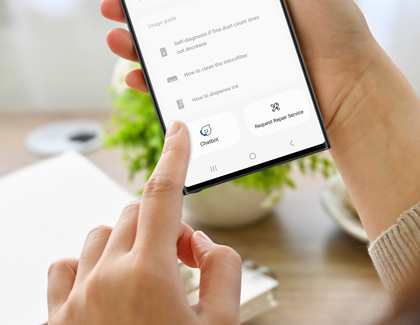
- Swipe to the bottom of the screen, and then tap Request Repair Service.

- Select your desired appliance, and then enter your personal information. Tap Continue.
- Follow the remaining instructions to create a service ticket for your appliance.
Track or cancel service request
You can also track or cancel an existing service ticket.
- Navigate to and open the SmartThings app, then tap the Life tab, and then tap Home Care.
- Swipe to the bottom of the screen, and then tap Request Repair Service.
- Tap Check repair status, and then select your desired ticket to view its information. You can also cancel a service ticket from here.
- If you’re having trouble tracking a ticket, you can also speak with Samsung’s Chatbot service. Swipe to the bottom of the Home Care screen, then tap Chatbot, and then tap your desired response, such as “Find my repair status” or “Help me with a product I already own.” Depending on your chosen response, you may need to enter your service order number and other details.

Contact Samsung Support


