Manage your Galaxy phone notifications with Link to Windows
View and manage notifications
- The Phone Link app supports all app notifications. System notifications are not supported. If you’d like to change your notification settings in Windows, you can review Microsoft’s notification guide.
- Available features, settings, and menu options may vary by device and software version.
Sync your phone’s notifications to your PC, so you won’t miss any important reminders. But you'll need to set up Link to Windows first before you can do this.
- Navigate to and open the Phone Link app on the connected PC. The Notifications section on the left side of the screen will display your most recent alerts.
- To remove a notification, hover over it, and then select Clear (the X) in the top right corner.
Note: If needed, select Clear all to remove all notifications. - You can also access notification settings by hovering over a notification, then selecting More options (the three dots), and then selecting Go to Settings. Or, you can select the Settings icon in the top right corner of the app’s screen.
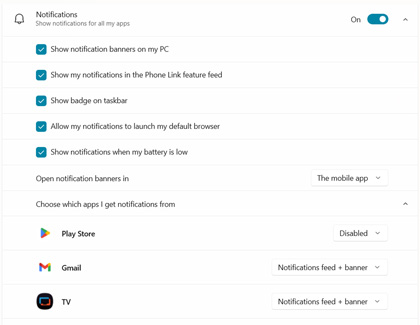
- Make sure Features is selected, and then select Notifications. From here, you can select your notification preferences, including notification banners.
- Select Choose which apps I get notifications from to modify your app’s notifications. You can select from Notifications feed + banner, Notification feed, or Disabled in the drop-down menu next to each app.
In addition to checking your notifications from the notification panel, you can also check them when you screen mirror with Link to Windows.
Contact Samsung Support


