Remove a payment card from Samsung Pay
Remove a payment card on a phone
If there is a card you don't really use anymore, you can remove it from Samsung Wallet any time you want. But remember, when you delete a card in Samsung Wallet, your physical card will remain active. If you want to cancel your card, contact the card issuer.
- Open Samsung Wallet on your phone, then tap the All tab, and then tap Payment cards.
- Select the card you want to remove, and then tap More options (the three vertical dots).
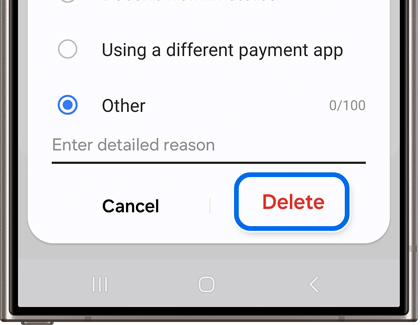
- Tap Delete card, and then choose a reason for removing the card if prompted.
- Tap Delete, and then enter your Samsung Wallet PIN or biometrics.

Remove a payment card on a watch
Remove a card using your watch
- On the watch, press and hold the Back button until Samsung Pay/Wallet launches.
- When prompted, input your PIN. If you have multiple cards, swipe to the card you want to remove.
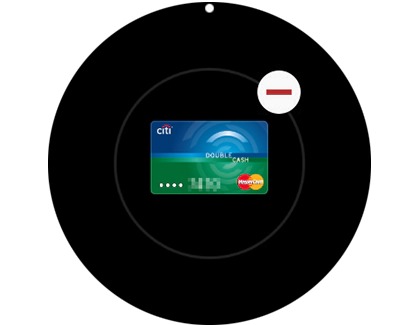
- Tap More options (the three vertical dots), tap Delete, and then tap the minus sign.

Remove a card from your watch using your phone
- To delete cards through your phone, navigate to and open the Galaxy Wearable app.
- The next step will vary slightly based on what watch model you have:
- Galaxy Watch5 and Galaxy Watch6 series: Tap Watch settings, and then tap Pay.
- Galaxy Watch4 series: Tap Watch settings, and then tap Apps. Tap App settings, and then tap Samsung Pay.
- Galaxy Watch3 and Galaxy Watch Active2: Tap Apps, and then tap Manage apps. Tap the Settings icon (it looks like a gear) next to Samsung Pay.
- Galaxy Watch and Galaxy Watch Active: Tap the Home tab, and then swipe to and tap Samsung Pay in the middle of the screen.
- Select the card you want to remove.
- Swipe up on the card details, tap the Delete icon, and then tap Delete.
Contact Samsung Support



