Use the Taskbar on your Galaxy tablet or Z Fold model phone
Taskbar slot limits
- Galaxy Tablets: The Taskbar is limited to a total of 4 app slots. You can pin up to 4 apps for quick access.
- Galaxy Z Fold models: The Taskbar supports a total of 8 app slots, including 6 selected apps and 2 recent apps. This allows for more flexibility in managing your frequently used and recently accessed apps.
Enable or disable the Taskbar
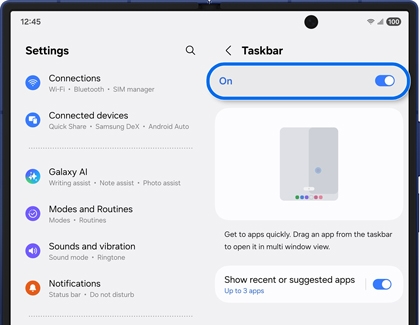
Although the Taskbar is turned on by default, it’s good to know how to find it again if you turned it off.
- Navigate to and open Settings, and then tap Display.
- Swipe to and tap Taskbar.
- Tap the switch at the top to turn it on or off.

- You can also tap the switch next to Show recent apps. This will populate the Taskbar with two of your recently opened apps.
Note: Option not available on Galaxy tablets. - Next, tap Show recent apps or suggested apps, and select the maximum number of apps to show on the Taskbar.
Note: Option not available on Galaxy tablets.
Use the Taskbar
The Taskbar lets you launch your favorite apps quickly and easily! It’ll appear at the bottom of your screen when you’re using an app or have a window open, just like on a PC or Mac.
Note: Taskbar is supported in Flex mode on the Galaxy Z Fold.
- Navigate to and open an app or window of your choice to view the Taskbar.
- Next, tap any app icon on the Taskbar to open it.
- To use Multi window, drag and drop your desired apps from the Taskbar into the top, bottom, left, right, or center portions of the screen.

- If there are two apps you use frequently, you can create an app pair from the Taskbar. Drag and drop the first app into the left portion of the screen, and then drag and drop the second app into the right portion.
- Then, tap the center of the screen, in between the two app windows.
- Tap the app pair icon (the star), and then tap Taskbar.

Note: You can also tap Home screen or Apps edge panel.
- The app pair will appear on your Taskbar; tap it to open both apps at once.
Add or remove apps from the Taskbar
Apps from your favorites bar will automatically be added to the Taskbar. So, if you have the Phone, Messages, and Contacts apps added to your favorites, those will also appear on the Taskbar. You can edit the apps that appear by adding or removing them from your favorites.
- From a Home screen or the Apps screen, touch and drag an app into the favorites bar area near the bottom to add it.

- To remove an app, touch and drag it out of the favorites bar.
- Or, touch and hold it until the pop-up menu appears, and then tap Remove.
Contact Samsung Support




