Use Samsung DeX on your Galaxy tablet

Do you want to use DeX mode but don’t have an extra monitor lying around? That won’t be a problem if you have a Galaxy tablet. Newer tablets, including the Galaxy Tab S11 Ultra, Tab S11Tab A11+Tab S10 UltraTab S10, Tab S10 FE, and Tab S10 FE+, have DeX built right into them. This means you can use DeX without connecting the tablet to a monitor or TV! Just open up DeX mode on your tablet to start multitasking.
A person using a Galaxy tablet in DeX mode with multiple app windows open and a keyboard attached.

Use Samsung DeX on your Galaxy tablet

DeX mode compatibility with tablets

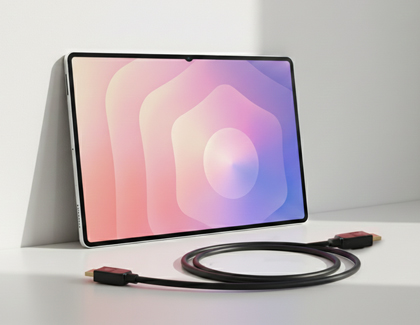
A Galaxy tablet leaning against a wall with a coiled HDMI to USB C cable in the foreground.

You can refer to the list below for compatibility information.

  • DeX cable or HDMI cable: Galaxy Tab S4, Tab S5e, Tab Active Pro, Tab Active 3, Tab S6, Tab S7 series, Tab S8 series, Tab S9 series, Tab S10 series, Tab S11 series, and Tab A11+.

    Note: The Galaxy Tab S9 FE, Tab S9 FE+, Tab S10 FE, S10 FE+, and Tab S10 Lite are not compatible with HDMI output.
  • DeX mode on tablet: Galaxy Tab S4, Tab S6, Tab S7 series, Tab S8 series, Tab S9 series, Tab A9+, Tab S10 series, Tab S11 series, and Tab A11+.

    Note: The Galaxy Tab S10 Lite is not compatible with standalone DeX mode.
  • Wireless DeX with a TV or monitor: Tab Active 3, Galaxy Tab S5e, Tab S6, Tab S7 series, Tab S8 series, Tab S9 series, Tab S10 series, Tab S11 series, and Tab A11+.

    Note: The Galaxy Tab S9 FE, Tab S9 FE+, Tab S10 FE, S10 FE+, and Tab S10 Lite are not compatible with Wireless DeX.
Read less

Use standalone DeX mode directly on your tablet

You can use standalone DeX mode directly on the Galaxy tablet screen without connecting to a monitor or TV.

  1. Just swipe down from the top right corner of the screen using two fingers to open the Quick settings panel. 
  2. Then, tap the Samsung DeX icon. If it's your first time using this feature, follow the instructions.
    MOB_TAB_GT_Use-standalone-DeX-mode-directly-on-your-tablet-1-2-re.jpg
  3. The DeX interface will load on the tablet the same way it appears on desktops and monitors.
  4. You can navigate DeX using the touch screen, S Pen, a USB or Bluetooth mouse and keyboard, or a Keyboard cover.

To exit standalone DeX, open the Quick settings panel again, and then tap the Samsung DeX icon.

Samsung DeX on Galaxy tablets running Android 16 with One UI 8.0 or higher now also allows you to launch apps directly from the Home screen in pop-up view to switch to DeX mode. Here's how:

  1. Launch any app on the Home screen, and then swipe down on the header bar (a horizontal line) in the top center of the app window to switch the app to pop-up view.
  2. You can open multiple apps and move or resize pop-up windows for enhanced multitasking in a desktop-like workspace.
  3. To set up another workspace, select the Recent icon at the bottom corner, and then select the Add desktop icon (it looks like a monitor with a plus sign) in the middle right.
    A Galaxy tablet showing the Desktop 3 workspace view with a monitor plus icon on the right edge highlighted by a blue circle.
    Note: You can create up to four workspaces. 
  4. While in the Recents view, swipe left or right to view your additional workspaces.
    A Galaxy tablet showing a blue back arrow icon in the center of the screen while switching between workspaces.

To exit DeX mode from the Home screen, select the Recent icon again, then select the Home screen icon in the middle-left, or select the X in the top-right corner of the workspace to close the desktop workspace(s). 

Read less

Use DeX mode on your tablet wirelessly with a TV or monitor

Although DeX mode on tablets doesn’t require cables, you can still connect it to a bigger TV or a smart monitor if you’d like.

  1. Navigate to and open Settings on your tablet, then tap Connected devices, and then tap Samsung DeX.
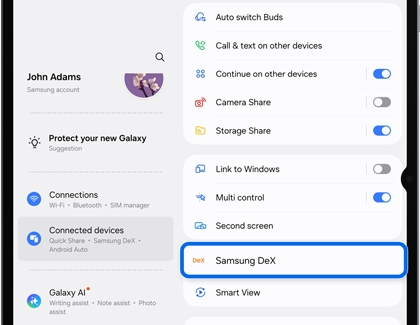
    A Galaxy tablet showing the Connected devices menu with the Samsung DeX option highlighted by a blue rounded box.
  2. Tap Connect wirelessly. If prompted, review and allow the permissions.
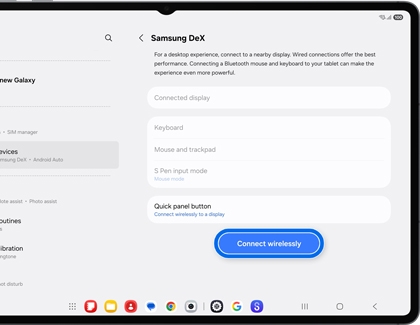
    A Galaxy tablet showing the Samsung DeX settings page with the Connect wirelessly button highlighted by a blue rounded box.
  3. Select your TV or smart monitor from the list, and then tap Start now.
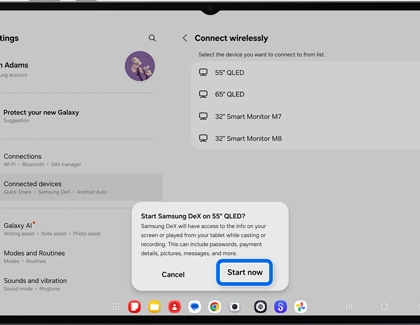
    A Galaxy tablet showing a pop up message to start Samsung DeX on a QLED TV with the Start now button highlighted by a blue rounded box.
  4. Your TV or smart monitor will prompt you to select Allow before connecting.
  5. Tap Start on your tablet to allow the necessary permissions. If another Samsung DeX pop-up appears, tap OK
  6. You can navigate DeX using the Touchpad icon (it looks like a small box) in the lower corner of the screen, an S Pen, a USB or Bluetooth mouse and keyboard, or a Keyboard cover.
    Note: You can perform basic operations using the touchpad, but some gestures, such as pinching with two fingers to zoom in, won’t work with the Touchpad.

To exit DeX mode, tap the DeX icon from the Quick settings on your tablet. Or navigate to and open Settings, then tap Connected devices, then tap Samsung DeX, and then tap Disconnect.

The following tips will help you when connecting wirelessly to a TV or monitor:

  • Maintain a short distance between your tablet and TV or smart monitor for a stable wireless connection, avoiding stuttering or lagging.
  • Remote DeX access from a Samsung TV may not work properly if your tablet's screen is turned off.
  • If facing connectivity issues, turn on your tablet's screen before reconnecting. While basic operations are possible with a PC-connected touchpad, gestures like two-finger pinching for zooming are not supported.
  • Touchscreen displays are not compatible with DeX functionality.
Read less

Use DeX mode on your tablet with a cable connected to a TV or monitor

A DeX cable, an HDMI-to-USB Type-C cable, or an HDMI adapter enables you to directly connect your tablet to a TV or monitor without requiring extra accessories. Follow the steps below to set up DeX:

  1. Plug the USB-C end of the DeX cable or HDMI cable into your tablet. Then, connect the other end of the cable to the HDMI port on your TV or monitor.
  2. Unlock your tablet if prompted. If it's your first time using DeX, a pop-up message will appear on the Home screen. Tap Start to enable Full Desktop mode.
    Note: If the pop-up doesn't appear, swipe down with two fingers to open the Quick Settings panel, and then tap the DeX icon.
  3. If your TV or monitor automatically mirrors your tablet's screen, swipe down from the top left side of the screen to open the Notification panel. Tap the Samsung DeX notification, then select Samsung DeX to switch to DeX mode. Or, swipe down with two fingers to open the Quick Settings panel and select the DeX icon.
    A Galaxy tablet showing the quick settings panel with the Wired DeX icon highlighted by a blue circle.
  4. If another Samsung DeX pop-up appears, tap OK
  5. You can navigate DeX using the Touchpad icon (it looks like a small box) in the lower corner of the screen, an S Pen, a USB or Bluetooth mouse and keyboard, or a Keyboard cover.
    A Galaxy tablet showing a home screen in DeX mode with a blue circle highlighting the app drawer icon in the bottom left corner.
    Note: Basic touchpad operations are supported, but gestures like two-finger pinching for zooming are not.

To exit DeX mode, tap the DeX icon from the Quick settings on your tablet, or disconnect the DeX cable or HDMI cable from your tablet.

Read less

Adjust DeX mode settings on your tablet

If you're facing challenges with text readability in DeX mode, need to tweak display settings for your connected screen, or want to adjust mouse and keyboard configurations, you can manage these preferences via the Samsung DeX menu.

  1. Open Settings and select Samsung DeX.
  2. From this menu, you can personalize your DeX experience:
    A Galaxy tablet showing the Connected devices settings menu with options for display resolution display rotation and screen timeout.
    • Adjust the connected display settings
      • Wallpaper
      • Font size
      • Display resolution
      • Display rotation
      • Screen timeout
    • Modify keyboard, mouse, or touchpad settings.
    • Change your sound output between the tablet and display.

These options allow you to tailor DeX mode to your preferences and improve usability.

Read less
Was this content helpful?
Table of contents
We're here for you

Contact Samsung Support

Contact us online through chat and get support from an expert on your computer, mobile device or tablet. Support is also available on your mobile device through the Samsung Members App.
auto-contact_us-pc-2x auto-contact_us-pc-2x