Use Art Mode on your Family Hub refrigerator
Add art to your cover screen
If you’d like to brighten up your kitchen, just apply an art collection to your Family Hub Cover screen.
- From the Family Hub Home screen, navigate to and tap Apps, and then tap Atelier. If you have not downloaded the app yet, you will be prompted to do so.
- Swipe through the different art collections, and then tap one that you like.
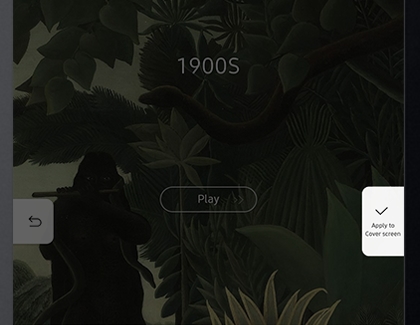
Note: If desired, tap Play to preview the artwork in full and view its description. - Tap Apply to Cover screen on the collection.

- Your selected artwork will appear on the Cover screen.
Add or remove art from your favorites
You can build a personal collection by adding artwork to your favorites list.
- From the Family Hub Home screen, navigate to and tap Apps, and then tap Atelier.
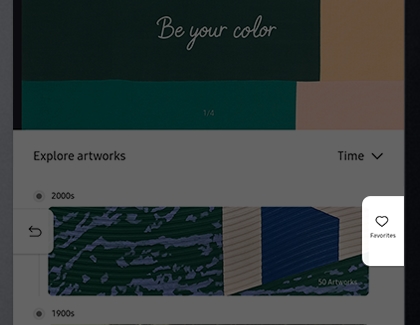
- Swipe through the different art collections, and then tap the heart icon on the artwork thumbnails at the bottom of each collection screen.
- To view your favorites, tap Favorites on the right side of the screen.
Note: To remove the artwork from your favorites, simply tap its heart icon again.

- To apply a collection from your favorites to the Cover screen, tap the Apply to Cover screen button on the Favorites screen. After you've applied artworks to your Cover screen, more wallpaper options are available in Wallpaper > Cover screen tab > Atelier/Favorites category.
Contact Samsung Support


