Use SmartThings Food to manage your meals and shopping list
Find meal ideas in SmartThings Food
Using SmartThings Cooking is like having a personalized cookbook right on your phone. You can find new recipes, choose your own ingredients, and set different meals as your favorites if you want to make them again later. SmartThings Cooking is also compatible with the Shopping List on your Family Hub refrigerator. Please see the next section for more information about the Shopping List.
- Navigate to and open the SmartThings app on your phone, and tap the Life tab at the bottom.
- Tap the Food tile to open SmartThings Food.
- If you want to add a shortcut so you don't have to navigate here every time, you can do so from this screen.
- Tap the three dots in the upper right corner.
- Tap Add to home screen.
- Tap Add to confirm.
- From the Home page in SmartThings Food, you can choose to Cook with your ingredients based on what's in your food list. You can also search for specific recipes or cuisine types by tapping Search.
- Once you find a recipe you want to explore, tap the recipe.
- From here, you can review the ingredients list, the instructions, and any comments or reviews about the recipe. If there are any ingredients you don't have, you can select them, and then tap Send to Shopping list so you don't forget them at the store!
- If you want to follow along one step at a time, tap Step-by-step cooking at the bottom. Your phone will read each step out loud to you as you cook. You can tap the left and right arrows to navigate through the steps.
Use the Shopping List feature in SmartThings Food
Add or buy ingredients from your phone
- To add to your Shopping List, open SmartThings Food on your phone, and then tap the Shopping Cart icon in the bottom right corner.
- Tap the + icon at the top to manually enter list items.
- Type in the item, and then select it from the list when it appears.
Note: You can also add items by selecting them when reviewing recipes, and then tapping Send to Shopping List. - To purchase the items on your list, either select them individually, or tap All at the top, and then tap Buy It at the bottom of the list.
- This will open a list of available stores to purchase from based on your zip code. Choose your preferred store, and then follow the on-screen prompts.
Add or buy items from your Family Hub panel
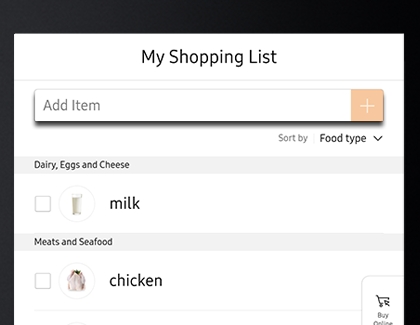
When your Family Hub fridge is added as a device in your SmartThings account, your Shopping Lists will sync between your phone and Family Hub and you can make changes on either one, whichever is more convenient. Here's how to use the Shopping List from the Family Hub panel:
- To add to your Shopping List using your Family Hub panel, navigate to and tap Apps, and then tap the Shopping List app.
- Tap Add item at the top of the screen.

- Add or remove as many items as you need to.
- If you'd like to purchase these items using a food delivery service, tap Buy Online on the right side.
- Select your preferred retailer, and then follow the on-screen instructions to finish buying your items.
Contact Samsung Support


