Access and manage apps on your Galaxy XR
View apps on your headset
Learn how to view and navigate apps on your headset with ease.
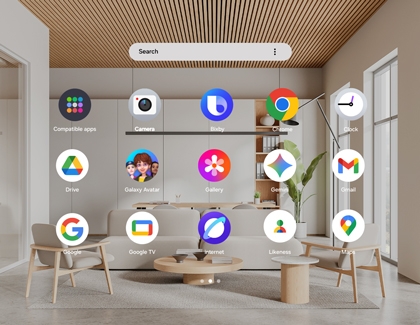
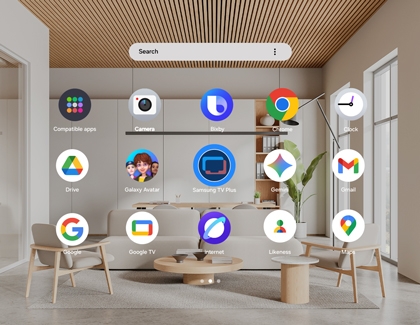
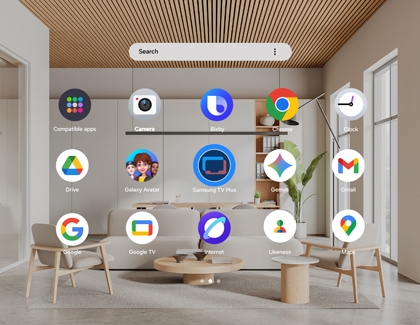
- Press the Top button once shortly to open the Launcher.
- Apps installed on your headset will be displayed.
- Use hand or eye gestures to swipe through the Apps tray.

Download apps on your headset
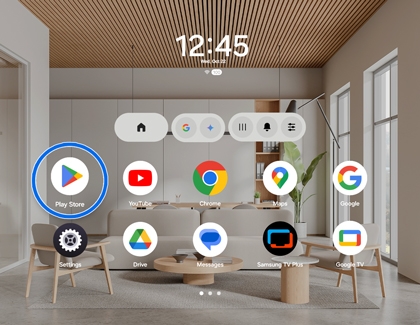
- Press the Top button to open the launcher.
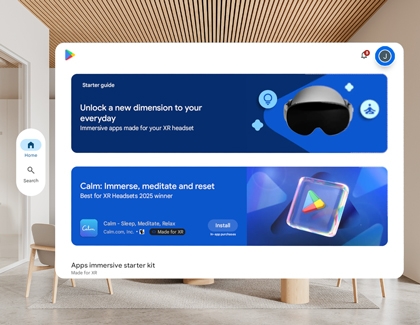
- Select the Play Store from the Apps tray.

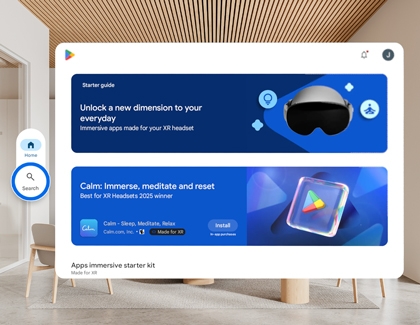
- Use the Search bar to find your desired app or browse through app categories.

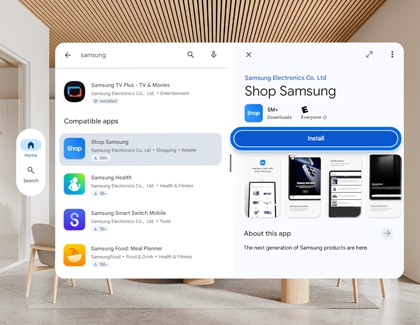
- Select the app, and then select Install.

Uninstall apps on your headset
- Press the Top button to open the Launcher.
- Locate the app you want to uninstall.
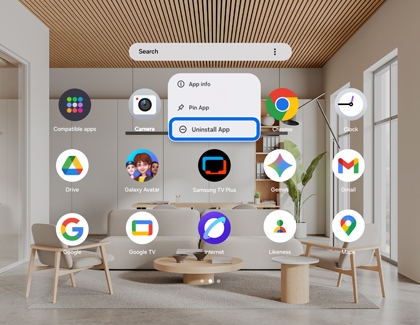
- Use your gesture method to select and hold the app until a menu appears.

- Choose Uninstall from the options.

Rearrange apps on your headset
- Press the Top button to open the Launcher.
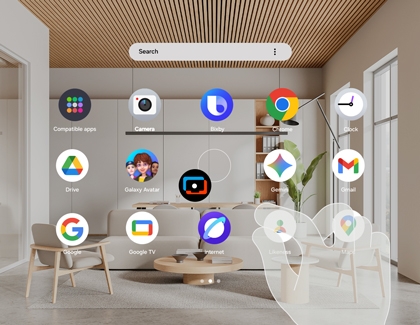
- Use your gesture method to select and hold the app you want to move.

- Drag and drop it to the desired position in the Apps tray.

Manage permissions for apps on your headset
- Press the Top button to open the Launcher.
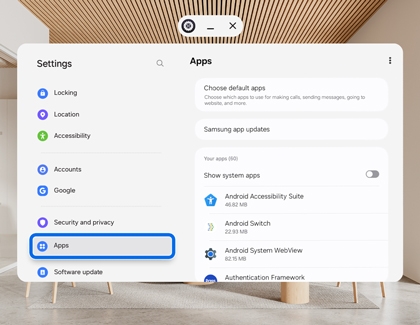
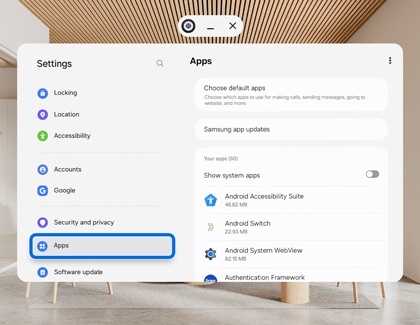
- Select Settings, and then select Apps.

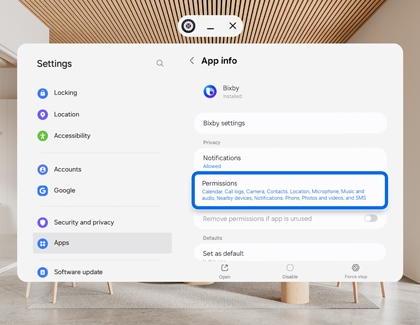
- Choose the app you want to manage, and then select Permissions.

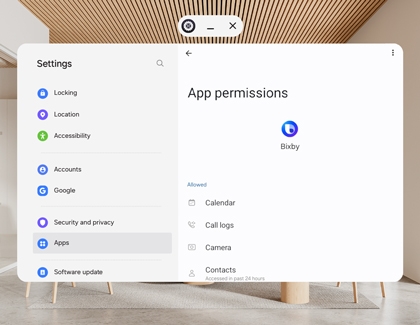
- Adjust the available permissions as needed.

Change default apps on your headset
- Press the Top button to open the Launcher.
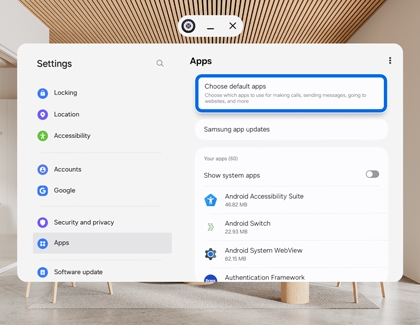
- Select Settings, and then select Apps.

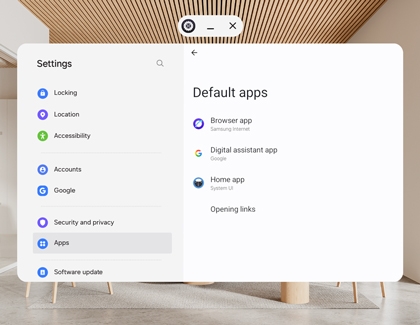
- Select Choose default apps and then select the default app to manage.

- Select an app to set as the default and adjust settings accordingly.

Check for app updates on your headset
- Press the Top button to open the Launcher.
- Open the Play Store, and then select your Profile icon in the top right corner.

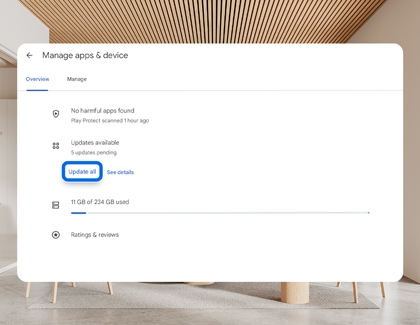
- Select Manage apps & devices.
- If an update is available, select Update or Update all.

Reset an app on your headset
- Press the Top button to open the Launcher.
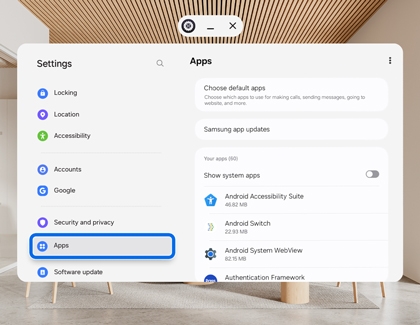
- Select Settings, and then select Apps.

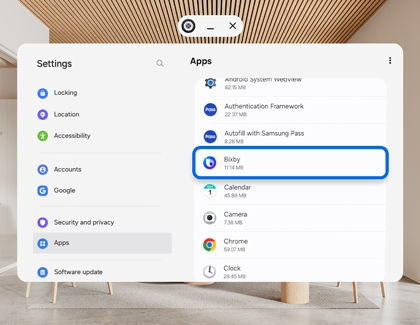
- Choose the desired app you want to reset.

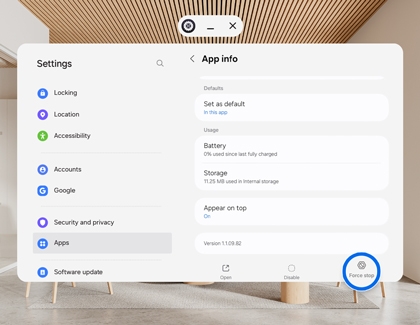
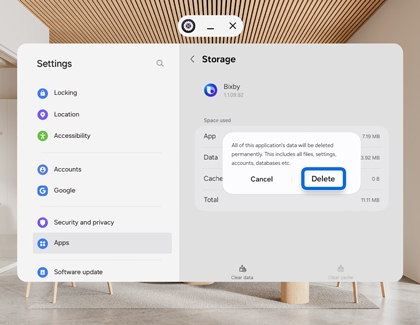
- Select Force stop, and then select Storage.

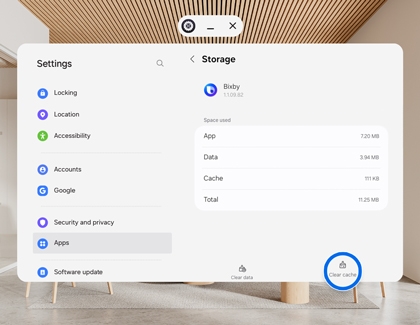
- Select Clear cache to get rid of residual files that could be slowing down the app.

- Select Clear data, and then select Delete to reset the app. This will completely wipe the app and reset it to the original settings.

Contact Samsung Support




