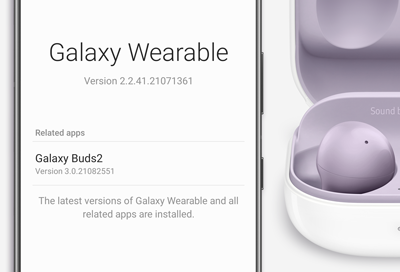
Software update issues with Samsung earbuds
Check your network connection.
A network connection is required on the connected device to update the earbuds' software. Make sure you are connected to a Wi-Fi or mobile network.

Charge the earbuds for at least 30 minutes.
Close the app or software on your device used to updated the earbuds.
Restart the device.
Check for updates on your device.
It may be necessary to update the software on your phone, tablet, TV, or computer before updating the earbuds.
- Galaxy phone or tablet: From Settings, search for and select Software update. Then, tap Download and install.
- Computer: Methods will vary, depending on the operating system of your computer. You can visit Chromebook, Mac, or Windows support pages for specific details.
- TV: You can update the software on your TV through the internet. On your TV, navigate to Settings, select Support, and then select Software Update. Select Auto Update to turn on automatic updates, or select Update Now to download updates.

Check for updates to the app or software used to update the earbuds.
Try installing the Buds software update again.
Set up service.
Contact Samsung Support


