Manage alarms on your Samsung smart watch
Add an alarm
For Wear OS Galaxy watches:
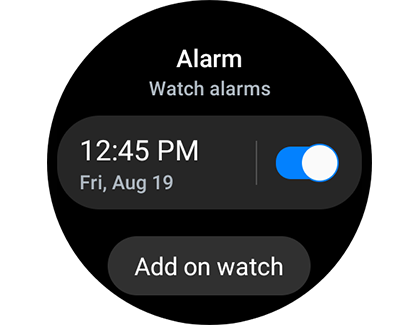
- Open the Alarm app from the Apps screen.
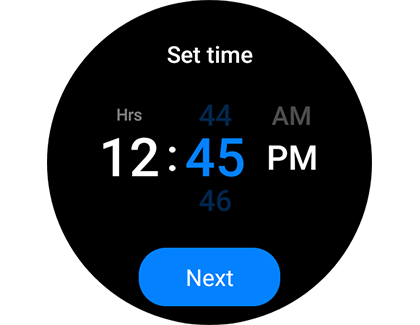
- Tap Add on watch, set your time, and hit Next.

- Choose options like Date, Alarm name, and Vibration, then Save.
For Galaxy Watch3 and Galaxy Watch Active2:
- In the Alarm app, tap Add on watch or Add.

- Set your time, repeat days, and alarm sound, then Save.
For earlier Galaxy Watch models:
- Select Alarm, then Add alarm.

- Choose your time, repeat days, and if available, sound and vibration options, then Save.
For Galaxy Fit series:
- In the Galaxy Wearable app, tap Alarm then + Add alarm.
- Set your time, days, and save. Vibration settings are adjusted in the app's Vibration menu.
Edit an alarm
For Wear OS and Galaxy Watch3/Active2:
- In the Alarm app, select the alarm to edit.
- Adjust time, options, and Save.

- For synced alarms, edit them on your phone's Clock app.
For earlier models:
Choose the alarm in Alarm, adjust settings, and Save.

For Galaxy Fit series:
In the Galaxy Wearable app, select an alarm, adjust its settings, and Save.
Delete an alarm
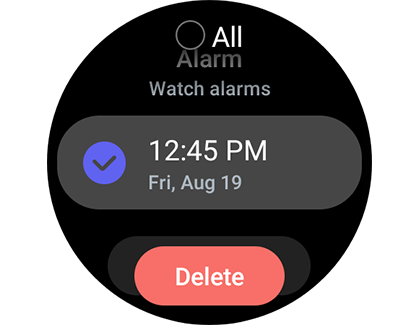
For Wear OS, Galaxy Watch3, and Active2:
- Hold the alarm in the Alarm app and tap Delete.

- For synced alarms, delete them from your phone's app.
For earlier models:
In Alarm, hold and select the alarm(s) to delete.

For Galaxy Fit series:
In the Galaxy Wearable app, tap the trashcan icon, select the alarm(s), and Delete.
Dismiss an alarm

Dismiss an alarm by dragging the X across the screen; tapping won't silence it. Snoozing is similar, using the Snooze icon instead.
Contact Samsung Support




