Use the Daily Board on your Samsung Smart Monitor
Requirements
In order to use the Daily Board, the following conditions must be met:
- A Samsung account must be added to your TV or monitor.
- Certain Daily Board features require registration via the SmartThings app on a connected phone or tablet.
Set up the Daily Board
Remote control
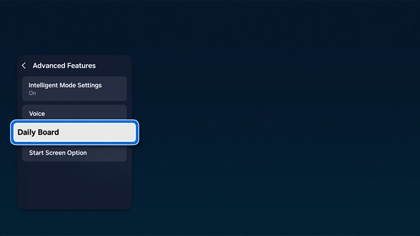
- Navigate to All Settings, then select Advanced Features, and then select Daily Board.

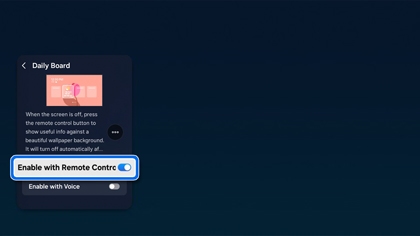
- Select Enable with Remote Control to turn on the feature.

- Next, while the screen is off, press the Select button on the remote to display the Daily Board.
Note: This can also be enabled during your device’s initial set up process.
Voice control
- Navigate to All Settings, then select Advanced Features, and then select Daily Board.
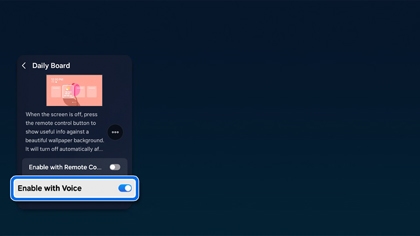
- Select Enable with Voice to turn on the feature.

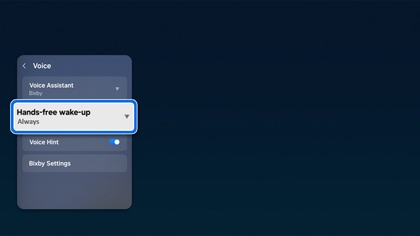
- Next, select Hands-free wake-up and set the option to Always.

- While the screen is off, say “Hi, Bixby” or “Alexa” depending on your voice assistant. The Daily Board will appear.
Adjust Daily Board settings
If you’d like to display different widgets or a new wallpaper, you can edit the Daily Board.
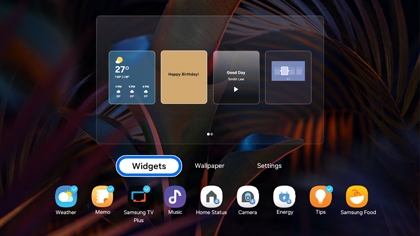
- Widgets: Select Edit, and then select Widgets. Add or remove your desired widgets.

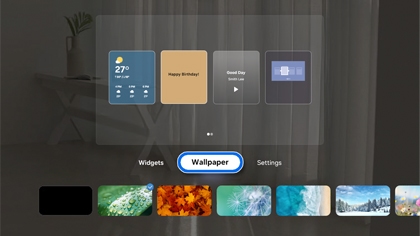
- Wallpaper: Select Edit, and then select Wallpaper. Choose a wallpaper from the available options.

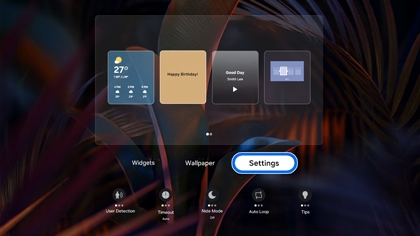
- Settings: Select Edit, and then select Settings. Select Screen Timeout to set the screen timeout time, and select Auto Loop to automatically rotate your widgets if you have added more than five. You can also select Tips to learn more about using the Daily Board.

Contact Samsung Support




